For partners
Create and manage client organizations
Add clients to your portfolio and maintain their workspace identity.
Create a client organization
- Open Organizations in the partner area.
- Choose the new-organization action.
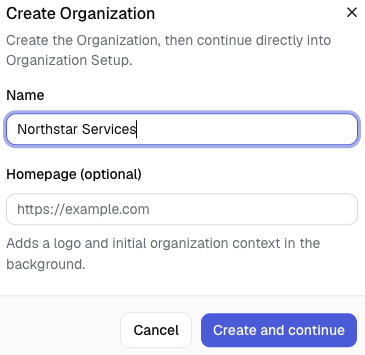
- Enter the client's name and optional homepage.
- Confirm creation and open the organization's detail.
- Continue into setup to review its structure and people.
Use the client's real identity in normal work. The help center's fictional Northstar Services examples illustrate a process rather than providing client data to import.
Open the client workspace
Choose the intended organization in the portfolio and use its workspace link. Confirm the organization name before creating campaigns, editing files, or sending invitations.
A portfolio may also surface other organizations you can access separately. Distinguish an organization assigned to your partner from one you reach through another access path. Partner management controls apply to assigned organizations.
Manage client settings
Use the client's Settings page for the identity controls available to you, including its name, homepage, slug, and logo. Use Members for client application access. Use the workspace itself for people, campaigns, reports, and files.
Review how the client's own logo interacts with partner white-label branding. Changes to visual identity do not create separate documentation; all users use the shared Applied Velocity help center.
Delete a client organization
Where your owner access permits it, the client's settings include Delete organization. This permanently removes the organization and its workspace data and cannot be undone. Review the confirmation and type the organization name when requested.
Deleting an organization is not the same as removing a member or ending a consultant's access. Preserve any required deliverables and agree the client's retention needs before using it. Partner audit history is retained, but that history is not a backup of deleted files or interviews.
If you only need to change client assignment or access, ask the appropriate owner or platform contact about that change instead of deleting the workspace.